Me and You System Requirements
Windows, macOS, controllers, and connection basics for Me and You.
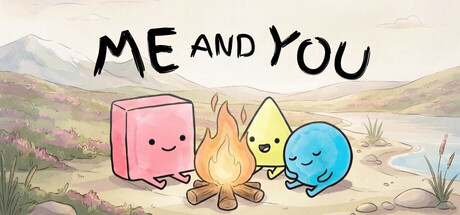
Me and You is a lightweight co-op puzzle game, not a ray-traced shooter. Steam publishes unusually open minimum specs: if your machine runs the Steam client on a supported desktop OS, you are likely fine. Still, pairs lose evenings to wrong OS assumptions, untested controllers, or shaky networks. This page consolidates the official Steam minimums, platform notes, and practical tips for demo nights and for the full launch on November 25, 2026.
Official Steam minimums
Windows
| Component | Minimum |
|---|---|
| OS | Windows |
| Processor | Any |
| Graphics | Any |
macOS
| Component | Minimum |
|---|---|
| OS | MacOS |
| Processor | Any |
| Graphics | Any |
Those “Any” CPU and GPU lines mean the developer expects the game to run on typical Steam-capable hardware without a dedicated GPU. Storage needs remain modest for a 2D/low-overhead puzzle title; leave a small buffer for Steam updates and Cloud files. Keep your OS and GPU drivers current anyway—input and windowing bugs are more common than raw frame-rate issues here.
Platforms and features that matter
- OS: Windows and macOS at launch.
- Co-op: online sessions, shared or split-screen local play, and Steam Remote Play Together.
- Input: full controller support plus keyboard.
- Steam extras: Achievements and Steam Cloud.
Confirm both players own or can launch the same build (demo app 5150970 today, full app 4933500 after release). Mixed demo/full mismatches will not connect.
Steam Deck and handhelds
As of writing, Steam Deck verification for Me and You is not confirmed on this wiki. Treat Deck play as experimental: test the demo yourself, check community reports, and verify both players’ controls in handheld or docked mode. If Deck Proton quirks appear, fall back to a desktop host with Remote Play Together so the guest streams from a verified machine. Revisit this note after launch when verification badges settle.
Controllers and dual input
Me and You assumes two active actors. Before Chapter 1:
- Plug in or pair both pads, or agree on keyboard plus pad.
- Open the title screen and move each cursor or character independently.
- Confirm neither player steals the other’s focus when menus open.
- Read Controls for binding expectations, then practice one push of a word block each.
Local split-screen is forgiving for couch play; online play needs each person on their own machine with their own input. Remote Play Together lets a friend borrow a streamed seat from the host PC—useful when only one person owns the demo install—but latency can make precise pushes harder on dense boards.
Online co-op bandwidth tips
Word puzzles do not need esport upload speeds, yet unstable connections still desync timing and voice. Practical guidelines:
- Prefer a wired Ethernet host when you can; Wi-Fi is fine if signal is strong.
- Close large downloads and 4K streams on the host during Water Thorns-length rooms.
- Use a dedicated voice channel (Discord or Steam) so callouts stay clear when rules change.
- If pushes feel delayed, have the more stable connection host the lobby—see Co-op Setup.
- Agree on a reset hotkey plan so a lag spike does not turn into a blame spiral.
For long sessions, pause between chapters. Chapter 2 rooms such as Crossroads, Lock, and Water Thorns run longer; fatigue plus packet loss is a bad mix.
Display and comfort
Play at a resolution where word text stays readable for both players. Split-screen users should sit where each half of the screen is clear; shared-screen users need a TV or monitor large enough for two people to parse small tiles. Colorblind-friendly callouts help: say the word text aloud (“breaking WALL IS STOP”) instead of only pointing at colors.
Pre-session hardware checklist
- Update Steam and verify game files if you hit odd crashes.
- Confirm OS matches a supported desktop platform (Windows or macOS).
- Test both inputs on the menu for ten seconds.
- Decide host, invite method, and voice app.
- Open Getting Started beside this page for first-hour goals.
After launch
When the full game ships, re-check this page for any revised Steam tables and Deck badges. Storage and Cloud notes may grow with extra chapters. Until then, the demo remains the best live test of whether your setup can handle real co-op rule play.
If something fails, isolate the layer: OS install → Steam launch → input → invite → voice. Most “game won’t work” reports are invite or controller seat issues, not missing VRAM. Keep Co-op Setup and Co-op Tips handy once both players are in a level.
Frequently Asked Questions
Quick answers to the most common questions.
What are the Me and You minimum specs on Steam?
Steam lists Windows or MacOS with Processor Any and Graphics Any. If Steam runs normally on your desktop, you should meet the published minimums.
Does Me and You run on Steam Deck?
Deck verification is not confirmed here yet. Test the free demo yourself or host from a desktop and use Remote Play Together if handheld play is unstable.
Do I need a gamepad?
Full controller support is included and comfortable for couch play, but keyboard input also works. What matters is that both players have reliable, separate control.
How much bandwidth does online co-op need?
Only a stable connection. Prefer a wired host, pause big downloads, and keep voice chat separate so rule callouts stay clear on long puzzles.
Will requirements change at full release?
Possibly. Re-check the Steam store page after November 25, 2026 and compare with this wiki entry if PMF Top Joy Games updates the tables.