Me and You Co-op Setup Guide
Online, local, and Remote Play paths so both players enter the same board.
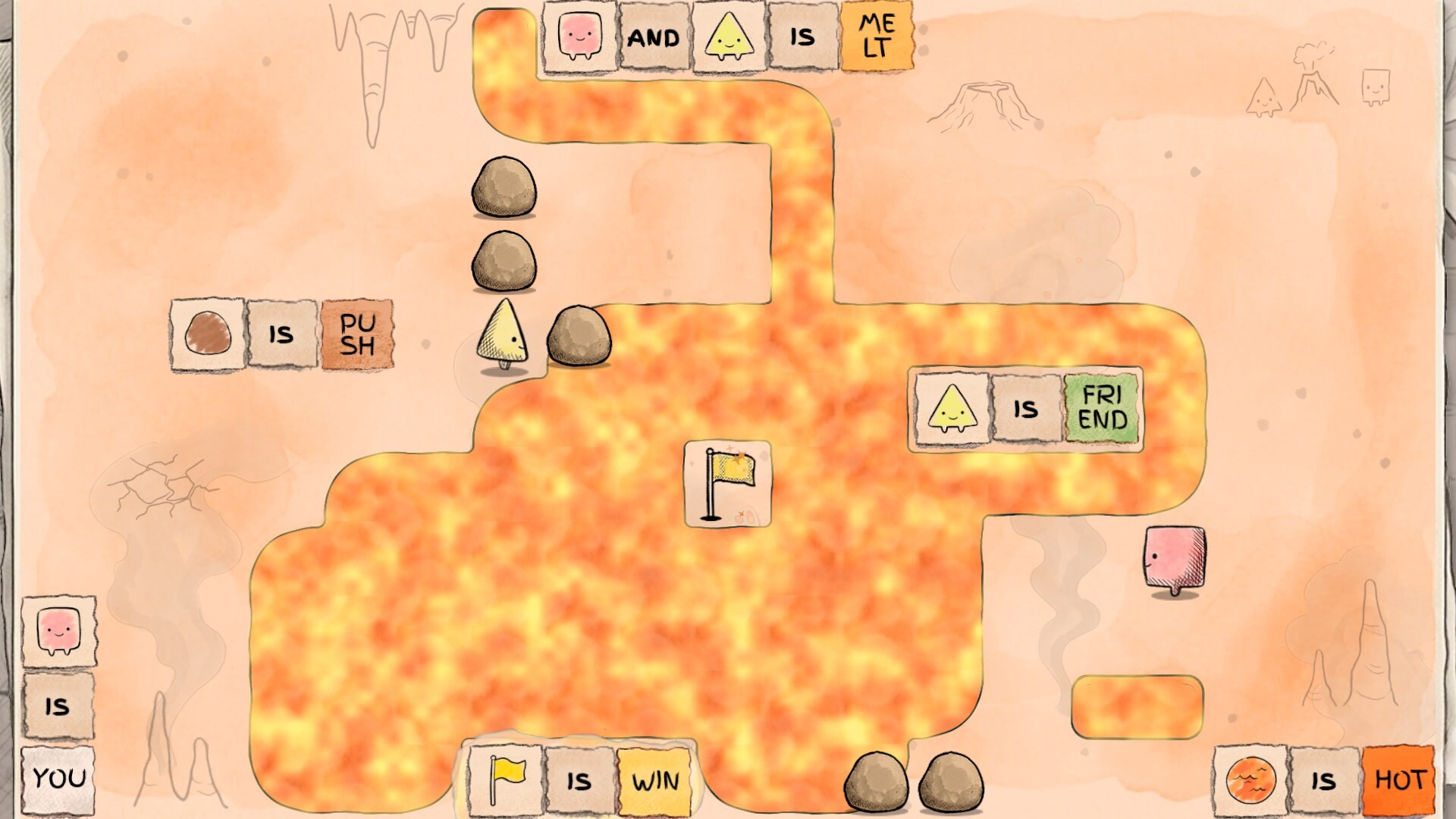
Every Me and You level expects two players. Before you argue about whether ROCK IS PUSH, agree how you will connect. This guide covers online invites, local shared or split-screen, and Steam Remote Play Together, plus the simple rule that the host starts the level. Pair it with Controls for bindings and Co-op Tips for mid-puzzle communication habits.
Choose a play mode
| Mode | Best when | Watch-outs |
|---|---|---|
| Online co-op | Each player has Steam on their own PC/Mac | Need stable net + clear host |
| Local shared / split-screen | Same couch, same machine | Screen readability, two inputs |
| Remote Play Together | Only one install, or a friend without the demo | Stream latency on precise pushes |
All three modes use the same rule language. Pick the lowest-friction option for tonight; you can switch later.
Online invite flow
- Both players install the same build (free demo app 5150970, or the full game after November 25, 2026).
- Decide who hosts. Prefer the player with the stabler connection and quieter background downloads.
- Host launches Me and You and opens the multiplayer / invite path from the menu.
- Guest accepts the Steam invite and waits on the join screen.
- Confirm both characters or cursors respond before selecting a chapter.
- Host starts the level. Guest should not mash start in parallel—duplicate prompts cause confusion.
- Enable voice chat before the first push. Call out which sentence you plan to break.
If the guest cannot join, verify both are on the demo versus full app, restart Steam overlays, and retry with the other person hosting. Firewall prompts on first launch are common; allow the game on private networks.
Local shared or split-screen
- Launch on the living-room PC or Mac.
- Connect two controllers, or controller plus keyboard. Test both seats on the title screen—see Controls.
- Select the local co-op / split-screen option.
- Sit so each player can read word text. On smaller monitors, shared screen may beat tiny split panes.
- Host seat (player one) starts the level once both confirm ready.
- Agree on who touches which side of the board to avoid fighting over the same block.
Local play removes netcode worries and is ideal for teaching Chapter 1. Keep drinks away from keyboards; long Chapter 2 rooms invite accidental key bumps.
Remote Play Together
Use Remote Play Together when only one person owns the demo or when a guest’s machine struggles:
- Host owns and launches the game.
- Host invites the friend through Steam’s Remote Play Together overlay.
- Guest receives a streamed seat and binds an input.
- Expect some delay on pushes. Slow down simultaneous moves; narrate before you shove a critical
IS. - Host still starts each level and manages resets.
Remote Play is a bridge, not always the best long-term mode for precision puzzles. Once both own the game, prefer native online co-op.
Host responsibilities
- Start and restart levels.
- Pause if voice drops.
- Keep Steam notifications from covering word tiles.
- Know how to re-invite if a guest disconnects mid-room.
- Mirror the board state verbally after any chaotic multi-push (“WALL IS STOP is gone; FLAG IS WIN still up”).
Guests should announce when they need a reset instead of silently walking into sink tiles. Shared mental models beat perfect mechanical play.
First-session script
- Finish setup with this page.
- Skim How to Play for win conditions.
- Clear early Chapter 1 rooms from the Demo Walkthrough list.
- Take a break before Crossroads, Lock, and Water Thorns—those spike in length.
- After the session, note which mode felt best and stick with it for launch night.
Troubleshooting quick hits
- Guest stuck on “joining”: swap host; restart Steam; confirm same app ID.
- Both inputs control one character: re-open local seat assignment; unplug extra pads.
- Unreadably small split view: switch to shared screen or a larger display.
- Desynced voice vs moves: establish a “ready?” call before breaking key sentences.
- Remote Play stutter: host lowers desktop resolution slightly; close capture software.
Tie-ins across the wiki
Hardware limits and Deck notes live on System Requirements. Strategy habits live on Co-op Tips. Difficulty expectations live on the Difficulty Hub. For calendar context, see Demo Overview and Release Info.
Set up once with intention. Me and You rewards pairs who treat connection quality and turn-taking as part of the puzzle—not as an afterthought after the first soft-lock.
Frequently Asked Questions
Quick answers to the most common questions.
Who should start each Me and You level?
The host. Guests should wait for a ready check so you do not double-trigger menus or desync the first moves.
What is the difference between online co-op and Remote Play Together?
Online co-op runs the game on both machines. Remote Play Together streams from the host so a guest can join with one install, usually with more input latency.
Can we play on one PC without online?
Yes. Use local shared or split-screen with two inputs on the same machine. Confirm both seats on the title screen first.
Our guest cannot join the demo lobby. What next?
Confirm both launched the demo (app 5150970), swap who hosts, restart Steam, and allow firewall access. Then re-send the invite.
Where do we learn controls after setup?
Open the Controls guide for bindings, then Co-op Tips for how to talk through rule changes during harder Chapter 2 rooms.